 By Aryan
A good round profile picture is recognizable before it is decorative. When somebody sees it beside a message or a comment, they should be able to identify the face or symbol without opening a larger view. Start with a clear photo, make the subject easy to find, and leave enough breathing room for the platform’s circular presentation.
You can prepare that framing with a browser cropper before uploading to Instagram or WhatsApp. The platforms may still apply their own cropping, scaling and compression. Treat your downloaded circle as a carefully framed source, then check the actual profile preview. No single file dimension guarantees identical presentation across every app and screen.
Choose a portrait that survives a small display
Select a photo with a clear face and an uncomplicated background. A landscape with a tiny person may look beautiful full screen but work poorly as a small avatar. A head-and-shoulders photo is easier to recognize because the face occupies more of the available area. The crop should help somebody see you, rather than make them search for you.
Look for good separation between the hair, face and background. Dark hair against a very dark wall can disappear at small sizes. A pale shirt against a bright background can merge into the edge. You do not need a studio backdrop, but choosing a less distracting part of the existing photo often helps more than adding decorative effects.
Use a photo you have permission to publish and feel comfortable sharing. Profile visibility is controlled by the destination app, not by the cropper. WhatsApp describes profile editing and visibility considerations in its official profile help. Review the app’s current privacy choices separately from preparing the picture.
Place the face within a comfortable circle
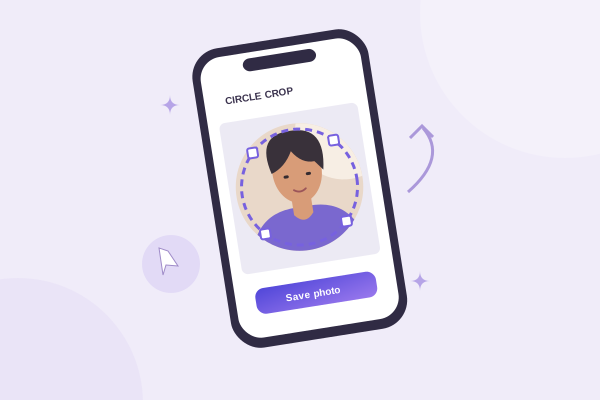
Open the round profile picture maker and select your original file. Keep Move circle selected while positioning the boundary around the head and shoulders. Imagine a little air between the hair and the top of the circle. The exact gap depends on the portrait, hairstyle and pose; a useful framing decision is visual rather than a fixed percentage.
Place the eyes a little above the middle when that suits the photo. Keep the chin within the lower curve, and check the shoulders at both sides. Circular boundaries narrow toward the top and bottom, so a face that fits a rectangular crop can still lose hair near the upper corners. Pay attention to the actual ring rather than the square canvas around it.
A sideways pose may need more empty space in the direction the person is looking. A centered face is a dependable starting point, but perfect geometric symmetry is not always the most natural composition. Make a small adjustment, inspect the result, then decide whether it improves recognition. Avoid cycling through many changes without comparing to your first sensible crop.
Keep the original background inside the circle in mind
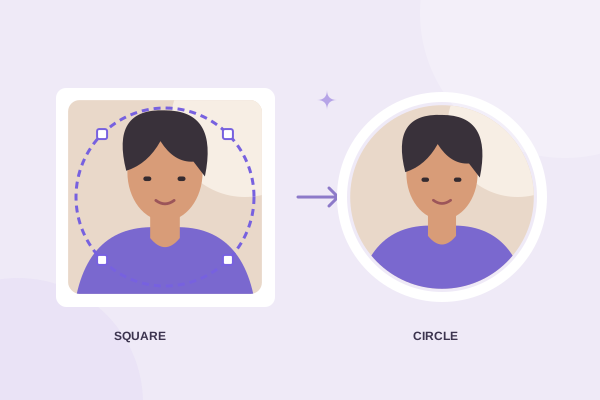
Circle cropping removes everything outside the boundary. It does not separate a person from the background inside it. If a bright lamp or another face is still visible inside the circle, reposition the selection or choose another source photo. A transparent PNG makes the outer corners transparent; it does not automatically remove a busy background behind your head.
Adjust size without losing useful detail
Zoom brings a small face closer. Use it only as much as the composition needs. When you zoom further into a source, the crop contains fewer original pixels. The editor’s output dimension readout helps you see the available detail, and the export presets avoid enlarging a crop beyond that detail. A larger requested file cannot recover features missing from a small source.
Use Circle size to control the selection diameter and Pan image to move the source under it. These are different actions. For example, you can leave the circle in the middle of the workspace, zoom slightly, and pan until the eyes sit comfortably. If the source already fills the circle well, moving the selection alone may be simpler.
Rotate a sideways source before making final framing decisions. Use Straighten for a small tilt that distracts from the face. A horizontal flip can feel more familiar if you normally see yourself in a mirror, but it also reverses writing and changes the orientation of the photograph. Check badges, signs and text on clothing before saving a mirrored version.
Pick a practical export rather than chasing a universal size
PNG is useful as a reusable master because it preserves transparent corners and avoids another lossy compression step in this tool. JPG is appropriate when you want a chosen solid background or your destination handles it more reliably. WebP can be useful for websites, but check whether the profile upload flow accepts it before making it your only copy.
You can select a preset such as up to 512 or 1024 pixels, provided the source crop has enough detail. These are practical working sizes in this editor, not claimed Instagram or WhatsApp requirements. Use the current app’s own upload feedback if it imposes a restriction. Avoid relying on old articles that present one number as a permanent rule for every platform.
Preview the crop and inspect the headroom, eye placement and edges. Download the file, then locate it in your device’s Downloads or Files area. Do not take a screenshot of the checkerboard preview as a substitute. A screenshot can capture the background grid, reduce resolution and turn transparency into visible pixels.
Upload and check the platform’s final presentation
In Instagram, open your profile and look for the current profile-editing option that changes the photo. Interface labels can vary by app version. Select the downloaded image and inspect the crop shown by Instagram before confirming it. If the platform adds its own zoom, reduce that zoom or choose a version with a little more breathing room.
In WhatsApp, open the profile settings and change the profile photo using the image you saved. The official help linked above describes the web flow; phone layouts can differ. Again, inspect the destination preview. If the face looks too large, return to the original and make a looser crop rather than repeatedly shrinking a compressed copy.
Compare a large view and a small view
After saving, check both the full profile and a smaller context such as a conversation list. Fine patterns, tiny jewelry and distant facial features may disappear when reduced. A simple, well-lit crop generally survives this better than a complex composition. If the app retains an old cached photo briefly, verify the selected file before assuming the crop failed.
Solve the common finishing problems
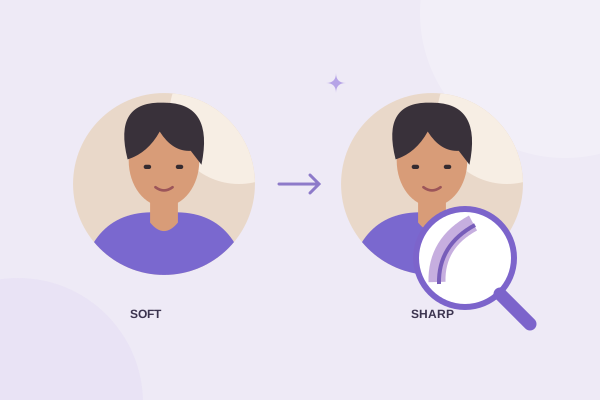
White corners usually indicate a solid background, a JPG export or a viewer showing transparency on white. Our transparent-corner guide explains how to tell these apart. A slightly soft edge can be normal antialiasing; a blurry face suggests a source or scaling problem. Use the blurry profile photo guide for a practical diagnosis.
If you are starting from a square image, the square-to-circle guide shows how the boundary affects corner details. On a phone, follow the mobile saving workflow when the file seems to disappear after download. Keep your original, your neutral master export and any platform-specific variant clearly named so the next update takes only a few minutes.
Give your photo a fresh frame.
Try the steps with your own image. Everything happens in your browser.
Try the free circle cropper