 By Aryan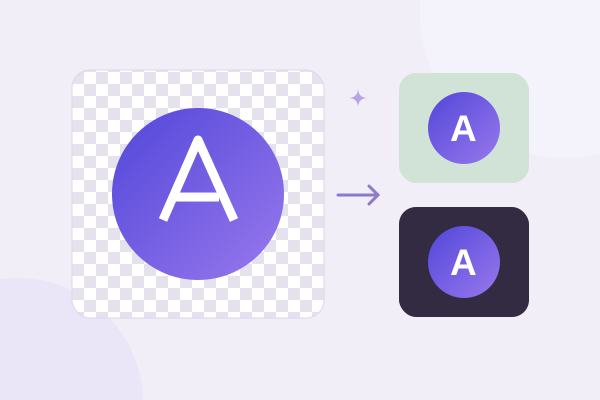
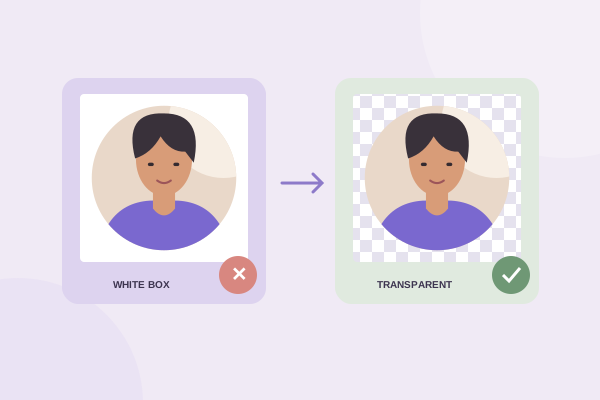
A circular logo with transparent corners can sit on a website, presentation or business card without carrying a distracting square box. The visible artwork stays inside a circle while the surrounding pixels let the destination background show through. The file itself still has a square pixel boundary, which is normal for a raster image.
The useful distinction is between cropping a logo into a circle and removing the background from a logo. This tool does the first. If your original contains a white background inside the circular selection, that white remains part of the artwork. Start with a transparent source when you need the interior gaps of a monogram or symbol to remain transparent too.
Prepare the right version of your logo
Use an original export from your design file when possible. A logo copied from a website header might be too small, already flattened onto white, or surrounded by unnecessary padding. A screenshot is especially unreliable because it captures whatever background was behind the logo. Ask for the transparent PNG master if somebody else created the identity.
This cropper accepts common raster images, including PNG, JPG and WebP. It does not accept SVG files. If your master is a vector, keep that editable original and export a generously sized transparent PNG from your local design application. The vector remains the best source for later revisions, while the PNG is a practical input for a circular web image.
Check whether your logo actually suits a circular composition. A compact monogram or emblem usually adapts well. A very wide wordmark may become unreadably small if every letter must fit inside a circle. In that case, use an approved symbol version of the identity rather than cutting off the name or squeezing the wordmark into a distorted shape.
Inspect the empty areas before cropping
View the source over a colored background. If the gaps between letters change to that color, they are transparent. If they remain white, the source is flattened. A checkerboard viewer can help, but make sure the checkerboard is only the viewer’s transparency indicator rather than an actual pattern baked into the image. Do not use a screenshot of that viewer as your source.
Frame the mark with balanced padding
Open the circular logo cropper and upload the compatible source. Position the selection so the whole approved mark is visible. Leave a deliberate margin between the outermost artwork and the circle edge. This margin protects points, strokes and lettering from feeling cramped when the result appears beside text or inside another interface.
Use Move circle to reposition the boundary. Use Pan image when you want to move the underlying design without relocating the selection. The circle size and zoom sliders offer two different ways to adjust framing: one changes the selected area, and the other changes how large the source appears within the workspace. Watch the result rather than treating those controls as interchangeable.
Consider visual weight. A monogram with a heavy stroke on one side may look off-center even when the geometric bounds are centered. Small nudges can improve its apparent balance. Check the top, bottom and side spacing separately, then look at the full mark again. If you are following formal brand guidelines, use those rules instead of improvising a new clear-space standard.
A logo should not be stretched to fill the crop. This editor preserves the image’s proportions and keeps the selection circular. If the source includes extra empty space, pan and zoom to select a useful composition. If the logo itself needs redesigning, return to the original design file; cropping should not be used to disguise an unsuitable layout.
Preserve transparency when you export
Choose PNG and leave Transparent selected. This preserves empty pixels outside the circle and any existing transparent pixels inside your source. The MDN image-format guide describes alpha-capable formats such as PNG and WebP. JPG cannot retain alpha transparency, so it needs a solid background instead.
WebP can be useful for a website when the browser offers the encoder and your publishing system accepts the file. For a logo with fine edges, compare the result carefully because compression choices matter. PNG is the simpler reusable master in this tool: there is no lossy quality slider for its export. Keep that master even if you later make smaller delivery variants. For a compact community badge, the Discord server icon guide explains how to simplify the same kind of mark for a very small display.
Select dimensions appropriate to the intended display. If the logo will appear at around 160 CSS pixels wide, a larger supported source can give a crisp export for high-density screens. Avoid creating an enormous file just because the maximum is available. Equally, do not enlarge a tiny logo and expect the missing edge detail to reappear. The editor caps output at the available source detail.
Watch for empty areas after transforms
A rotation can expose transparent wedges if the image no longer covers the selected circle. That may be intentional for a floating monogram, but it can be distracting for a badge meant to have a continuous background. Reframe the image or use an appropriate background setting when the design requires a filled disc. Preview the exact result before saving.
Test the downloaded logo on real backgrounds
Place the downloaded PNG on white, a dark charcoal and at least one brand color. The outside corners should reveal each background cleanly. Inspect fine edges for pale fringes. If a white outline appears around the artwork, it may come from antialiased pixels blended against white in the original source. A circular crop cannot rebuild those source edges.
Check interior counters as well as the outside. A letter A, O or R may contain an enclosed gap that should be clear. If the gap remains white on a dark background, inspect the source rather than repeatedly changing the export setting. Transparent export preserves existing alpha; it does not identify white pixels and erase them from the logo.
Use the actual download, not the preview screenshot. The preview’s checkerboard is a viewing aid. A screenshot of it turns that grid into real colored squares. If you see checkerboard squares when the downloaded file is placed on a solid slide, return to your source and make sure you did not accidentally upload a captured preview.
Publish with a sensible size and description
Keep the square file dimensions in your website markup so the browser can reserve space. Size the displayed image with CSS without distorting it. If the logo links to a homepage, the accessible label should communicate that purpose or the organization’s name. Avoid treating a functional brand link as an unexplained decorative picture.
Retain the original vector or design document, the transparent PNG master and any website-specific version. Name files clearly so your team does not substitute a JPG later and reintroduce an opaque square. When handing the file to somebody else, state that the surrounding area is transparent and explain which background variants have been checked.
For publishing several people or brand elements together, the team avatar guide explains consistency across a layout. If you are deciding between delivery formats, read the PNG, WebP and JPG comparison. If the only remaining issue is an opaque box, the white-corner checklist will help locate where it entered the workflow.
Give your photo a fresh frame.
Try the steps with your own image. Everything happens in your browser.
Try the free circle cropper