 By Aryan
A Discord server icon has a demanding job: represent an entire community in a very small space. A detailed poster or long wordmark can look impressive at full size and become an indistinct patch in a sidebar. A clear symbol, a deliberate silhouette and a little padding usually communicate more effectively than extra detail.
This guide focuses on making a static circular icon from artwork you already own or have permission to use. You will simplify the composition, frame it inside a circle, choose an export and inspect the uploaded result. The cropper does not create a brand identity automatically or add animation. Your design decisions still determine whether the icon is recognizable.
Start with one strong community symbol
Choose the element that best represents the server: an initial, a simple original emblem, a character portrait or a recognizable object. Avoid fitting the entire server name into a small circle. If the name is important, consider a single initial or a short monogram that remains legible without careful reading. Keep the full name in the server’s text fields.
Look at the artwork in grayscale or simply squint at it. The main shape should remain distinct from the background. Pale lavender on white may look refined in a large design but disappear in a narrow sidebar. A darker symbol on a light circle, or a light symbol on a dark field, gives the mark a stronger foundation.
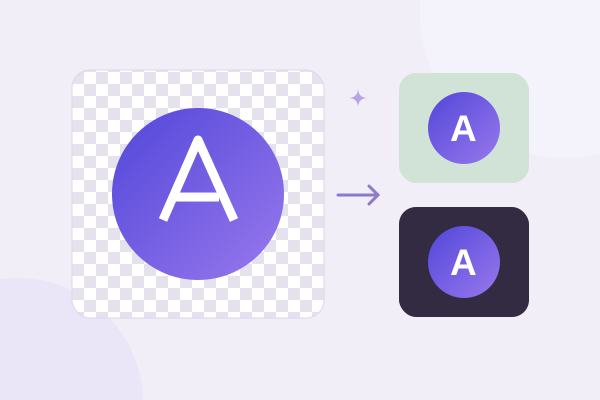
Decide whether the icon is a badge with its own circular background or a transparent symbol inside a circular crop. A badge provides a predictable boundary on changing interfaces. A transparent symbol can look clean but may disappear against a similar background. Test both light and dark surroundings instead of assuming that your design will always sit on one color.
Prepare an original file with room around the mark
Use the highest-quality version you have. A small thumbnail copied from a chat history is a weak starting point because it may already be compressed or rescaled. A PNG exported from your own design file is often a good source for flat artwork. If your source is SVG, export it to PNG in a trusted local design application first; this cropper does not accept SVG uploads.
Leave empty space around the symbol. A point or letter touching the ring can feel cramped, and different interface treatments may make it appear even tighter. The exact padding depends on the silhouette: a star has more vulnerable points than a simple disc, while an initial with a wide top may need slightly different visual centering.
Open the circle crop workspace and select the source. Start in Move circle mode. Place the outline so that every important extremity fits comfortably inside it. Then use Pan image if you want to adjust the source while keeping the selection in place. Check that intentional borders are evenly visible rather than clipped on one side.
Optical centering matters more than a ruler
A right-leaning symbol can look off-center even when its bounding box is centered. Make small position changes and compare the balance of empty space around it. Our nudge controls are useful for this. You are aiming for visual stability, not merely identical coordinate values. Save a preview before making a large correction so you can compare the two versions.
Keep the icon clear when it gets small
Temporarily view the preview at a smaller size, or open the exported image and reduce the viewing scale. Can you still distinguish the main mark? Thin outlines, multiple tiny stars and short text lines often merge together. Simplify those elements in the source design instead of trying to rescue them by zooming or exporting a much larger bitmap.
If the artwork includes a ring, make sure it has enough separation from the crop boundary. Two nearly overlapping circles can create a distracting sliver. Either keep the decorative ring visibly inset or let a full background fill the crop. A delicate hairline at the outside edge is more likely to show unevenly after a platform resizes it.
A face-based icon needs a different approach. Place the eyes and expression where they remain recognizable, and do not crop so tightly that the chin or hair touches the edge. Avoid a busy background. The same principles in our sharpness guide apply: useful detail comes from a clear source and suitable framing, rather than an oversized export.
Choose PNG or another format the destination accepts
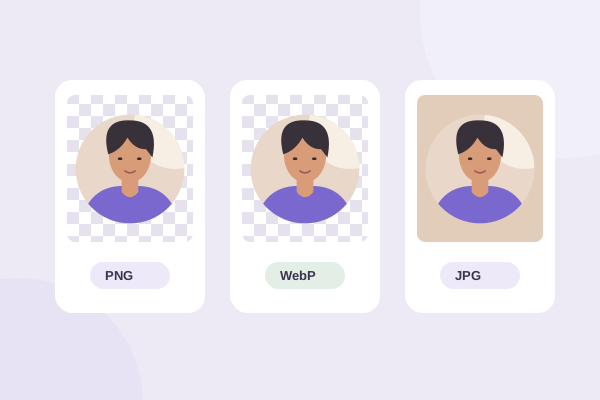
PNG is a dependable master for crisp flat artwork and transparent corners. Leave Transparent selected if you want the outside of the circular crop to remain clear. If your icon is intended to have a colored badge background, that color should be part of the design or selected deliberately as the export background. Do not depend on a white preview window to supply it.
JPG makes the entire square file opaque and can introduce compression artifacts near high-contrast lettering. It may be fine for a photographic badge with a chosen matte, but it is usually less convenient for a transparent emblem. WebP is offered only where the browser can encode it, and you should check that the upload destination accepts it before relying on it.
Choose an output size supported by the crop’s available detail. The 512-pixel preset is a useful working option in this tool when your source supports it; it is not a promise about Discord’s current minimum or maximum requirements. Follow the current upload interface if it reports a size or file restriction. We avoid quoting a permanent platform limit that may change.
Upload through the server’s settings and inspect the result
Discord’s Server Profile documentation identifies the icon as part of server customization. Use the current server settings interface and an account with the necessary permission to change it. Community artwork should be approved by the people responsible for the server, particularly when you are replacing an established identity.
Select the downloaded file rather than a screenshot of the editor. Inspect the destination preview, confirm it when you are satisfied, and then look at the server sidebar itself. Check whether the symbol remains distinct next to neighboring icons. The uploaded view is the final reference because the platform controls its own scaling and display treatment.
Keep a neutral master and a named variant
Save the original design separately from your cropped export. Use a useful name such as community-badge-round-v2.png so a future update is easy to identify. If you make a dark-background variant, name it accordingly. Avoid repeated edits of an already compressed upload when the original artwork is available.
Troubleshoot the last details
If the icon has a white square around it, inspect the export format and background setting. The format comparison explains why JPG cannot keep alpha transparency. If the symbol itself has a white patch, that may already be present inside your source image and requires editing the original artwork.
For a monogram or company emblem, use the circular transparent logo guide to check interior gaps and edge spacing. Keep the icon simple enough to recognize at a glance, review it after upload, and retain an editable source. Those habits matter more than chasing a particular export number.
Give your photo a fresh frame.
Try the steps with your own image. Everything happens in your browser.
Try the free circle cropper