 By Aryan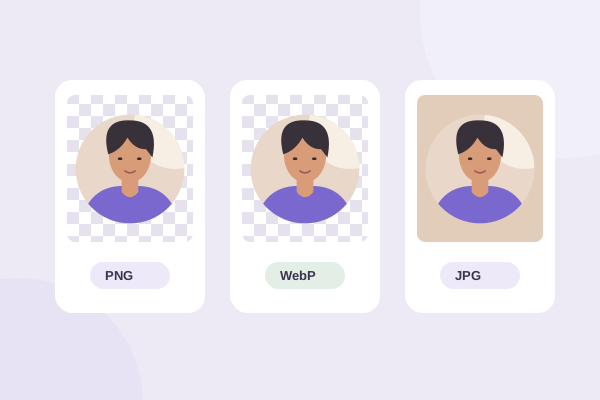
Choose PNG when you want a dependable transparent circular master. Consider WebP for a smaller website image when both the exporting browser and the destination support it. Choose JPG when the destination wants an opaque image or when a deliberate solid background is part of your design. The right answer depends on where the image will go, not simply which extension is newest.
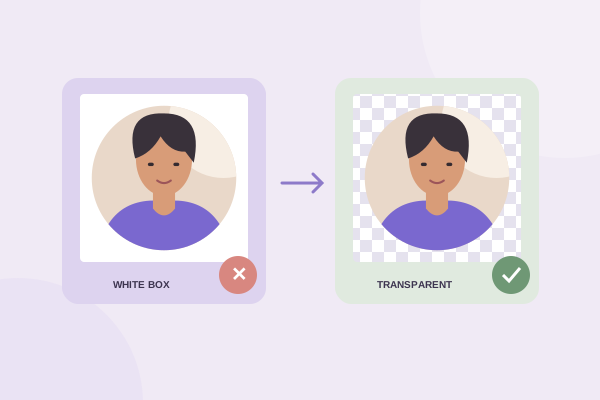
All three formats store rectangular pixel grids. A circle crop is a round visible area inside a square file. PNG and WebP can make the outside pixels transparent; JPG must fill them with a color. Understanding that distinction prevents the most common surprise: downloading a round portrait and discovering a white box on a colored page.
Separate the crop from the container format
Cropping determines which part of your original remains visible. The container format determines how those pixels are saved. You can frame exactly the same face three times and produce different corner behavior or compression artifacts simply by choosing different formats. Changing formats does not improve the composition or recover detail excluded from the selection.
The cropper’s geometry is shared between preview and export. When you rotate, flip or pan an image, those changes are applied to the saved result. The exported file comes from the decoded source rather than a screenshot of the canvas. That means you can choose a format based on the destination while keeping the framing consistent.
Start by asking two questions. Do the corners need to reveal the background behind the file? Does the place receiving the image accept your chosen format? If the first answer is yes, exclude JPG. If the second answer is uncertain, save a PNG master and inspect the destination’s current upload feedback rather than assuming that every app accepts the same formats.
Use PNG for a reusable transparent master
PNG is a good starting point for a logo, avatar or circular portrait that will appear over different backgrounds. In this tool, choose PNG and keep Transparent selected. Empty areas outside the circular boundary remain clear. Existing transparency inside the source is preserved as well, provided you have not chosen a solid export background.
PNG export does not have a lossy quality slider here. You still control the output dimensions and framing. Reducing dimensions discards spatial detail even when the file format is lossless, so lossless does not mean that every export matches the original pixel for pixel. It means the PNG encoding step does not add the particular damage associated with lossy compression.
For an illustration with crisp shapes, keep a PNG master before producing other versions. This gives you a stable file to return to if a delivery format introduces halos or a publishing service rejects the alternative. It is also useful when another person needs to place the circle on a presentation background you have not seen yet.
Do not confuse transparency with background removal
If your photo shows a person against a wall, the wall inside the circle remains visible. Transparent corners do not isolate the person. Likewise, a white rectangle already baked into a logo source is still part of that source. A format can preserve alpha, but it does not automatically decide which white pixels should disappear.
Consider WebP for practical website delivery
WebP supports transparency and can be a useful delivery format for round website photos. The actual file size depends on the subject, dimensions and quality. Avoid assuming that one format is always smaller for every image. A detailed portrait and a simple two-color badge behave differently, so compare the files that matter for your own layout.
The editor shows WebP only after checking the browser’s encoder capability. Export also verifies that the returned file has the requested MIME type. This matters because a browser can support displaying a format without supporting its canvas encoding. Read support and write support are separate capabilities. A selectable extension alone is not proof of a working encoder.
Use the quality slider when exporting WebP and compare the result at its intended display size. Look closely at hair, fine lettering, eyes and high-contrast circular edges. If reducing quality saves little but damages those details, keep the higher-quality version or use PNG. Small delivery gains are not useful if the person or logo becomes harder to recognize.
Choose JPG when an opaque square is appropriate
JPG has no alpha channel. The background color control supplies the area behind the circular crop, including its corners. Choose a color that suits the destination rather than accepting white automatically. A pale cream may suit a light presentation, while a dark matte may suit a particular website panel. It remains a complete opaque square.
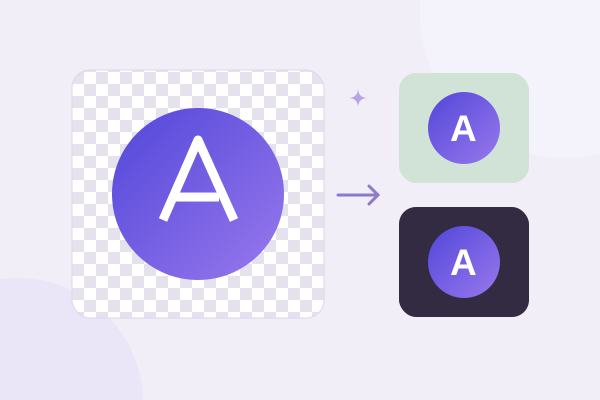
This also means a JPG cannot adapt to several destination backgrounds. A circle saved on white will show white corners on a purple slide. If the page background changes later, you may need another export. For a flexible reusable asset, transparency is usually easier than maintaining a separate matte color for each placement.
The JPG quality slider changes the encoding tradeoff. Very low quality can create blocks or ringing near sharp edges. Start reasonably high, inspect the downloaded result and lower it only if file size is a real problem. Repeatedly opening and resaving a compressed JPG can add avoidable degradation; make new exports from the original source instead.
Match dimensions to the actual use
A larger file is not automatically sharper. The crop may only contain a few hundred original pixels, especially after substantial zooming. This tool caps exports at the available crop detail and a 4096-pixel maximum. Its presets are upper bounds, so choosing 1024 does not force a small source crop to become 1024 pixels wide.
For a website avatar, consider the displayed size and the screen density. A source larger than the CSS display width gives room for a denser screen, but excessively large downloads add weight without a visible benefit. For a platform upload, inspect the platform’s current requirements and preview. We do not claim one universal avatar size for every service.
The browser ultimately performs the encoding. MDN’s canvas toBlob documentation explains that unsupported requests can fall back to PNG. Our export check rejects a mismatched format instead of silently labeling the fallback with the wrong extension. AVIF export is omitted because it is not a dependable browser encoding option in this implementation.
A short selection workflow
Make the composition first using the circle crop tool. Export a transparent PNG master. If the final destination accepts WebP and file weight matters, create a second version at suitable quality and compare it. If the destination requires an opaque image, choose JPG and deliberately match the matte to the intended background.
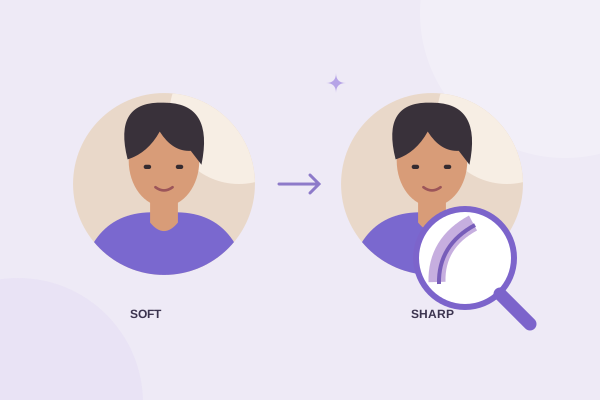
Check the actual downloaded files over a colored surface. If you still see white, use the white-corner guide to distinguish format behavior from a flattened source. For a logo, the transparent logo workflow covers interior gaps. If the entire subject looks soft, follow the sharpness guide before changing formats repeatedly.
Give your photo a fresh frame.
Try the steps with your own image. Everything happens in your browser.
Try the free circle cropper