 By Aryan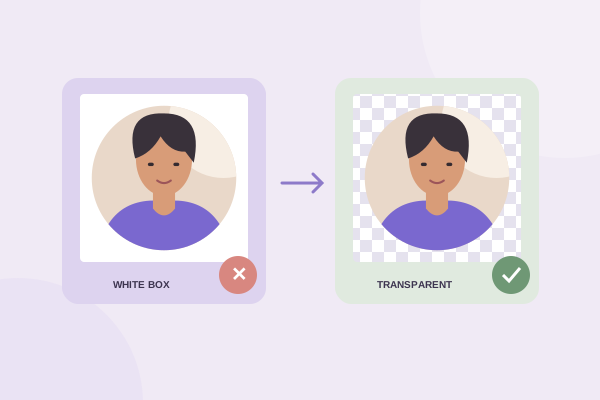
White corners around a circle usually come from one of three places: an opaque export format, a solid background selected during export, or white pixels already present in the source. There is also a harmless fourth possibility: your viewer may be showing a transparent file over its own white background. Identify which case you have before repeating the crop.
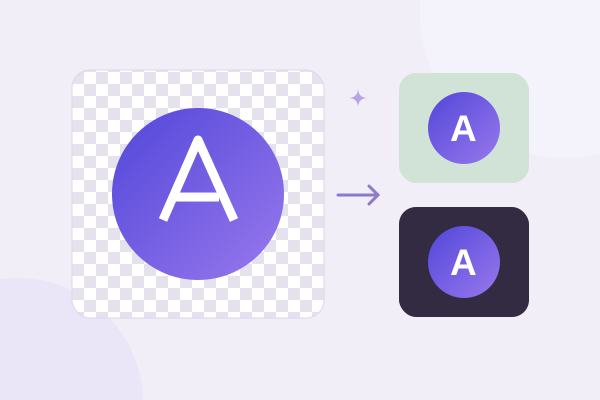
A round-looking image still lives inside a square raster file. Transparency tells another application which pixels should reveal the background underneath. If those corner pixels are opaque white, a colored page will show a white square. If they are transparent, the page color will appear naturally around the circle. The crop outline alone does not prove which pixels were saved.
First, check the actual file you downloaded
Look at the extension and open the real downloaded file. A screenshot of the editor is not a transparency-preserving export. It captures the background shown on your screen, including white, gray or checkerboard pixels. If you took a screenshot, return to the cropper and use the Download button instead.
Check whether you are opening the newest result. Several attempts can create similarly named files in Downloads. Your browser may append a number to repeated names. Inspect the modification time and extension, or move the final file to a clearly named folder after downloading. Testing an earlier JPG can make a corrected PNG appear to have failed.
Place the file over a saturated colored background in a document or page that supports transparent images. A dark purple or green surface makes opaque white corners easy to see. If the color shows through the corners, the file is already working. The white you saw belonged to the viewer rather than the saved image.
Do not trust the preview background by itself
Different applications show alpha differently. A transparent area can appear white, black, gray or checkerboard depending on the viewer. None of those display choices alone identifies the saved pixels. Testing the same file over two different colors is a more useful visual check than reopening it repeatedly in one white window.
JPG cannot preserve transparent corners
If the file is JPG or JPEG, its corners are opaque by design. JPG does not store an alpha channel. The circle can still be visible, but a chosen color must fill the rest of the square. MDN’s image format reference explains the different format capabilities, including transparency in PNG and WebP.
Return to the transparent circle crop tool, select PNG, and check Transparent under Background. Download a new file and test that one on color. Do not just rename the JPG extension to .png. Renaming changes the filename, not the encoded image or the missing alpha channel.
If the destination only accepts JPG, choose a solid color that matches where the image will appear. That can make the square unobtrusive on one fixed background, but it is not transparency. If the background changes later, the corners may become visible again. Keep a transparent PNG master for other destinations.
PNG can still have a solid background
PNG is capable of transparency, but not every PNG contains transparent pixels. If you selected a background swatch in the cropper, the export intentionally fills empty areas with that color. Re-enable Transparent and make another PNG export. The file format and the background choice both matter.
Also inspect the source. A logo downloaded from a website may already have a white square baked into it. A screenshot of a circular logo can contain white around the mark even when saved as PNG. The cropper does not remove white pixels automatically; it clips the boundary you chose while preserving the contents inside it.
To diagnose a source problem, zoom into the preview and compare the white area with the crop boundary. If white is inside the ring, it is likely part of the selected source region or an intentional background fill. If it lies only outside the ring in a supposedly transparent export, inspect the export setting and file you are testing.
Interior white is a different problem
A circle crop can clear the outside corners while leaving a white gap inside a letter or between parts of a logo. Those pixels are inside the selection and remain unchanged. Start from an original transparent design export if those gaps should be clear. Our transparent logo guide explains the difference between existing alpha and a flattened source.
Distinguish a pale fringe from a white square
A full white rectangle and a thin light halo are different symptoms. A rectangle suggests an opaque matte or flattened file. A narrow pale fringe around the artwork may come from source edges that were originally antialiased against white. The circle cropper cannot reconstruct the original foreground color hidden in those blended source pixels.
Check whether the fringe follows the circular crop boundary or the subject inside it. The crop boundary uses antialiasing so a curved edge looks smooth. A few partially transparent edge pixels are expected. A pale outline following a person’s hair or a monogram’s strokes can instead be part of the input image.
For an artwork problem, return to the original vector or layered design and export it over transparency. For a photographic source, choose a cleaner original where possible. Avoid repeatedly enlarging or sharpening a damaged edge, which can make the halo more visible. A clean input is usually more effective than trying several container formats on the same flattened source.
Check what the destination does to the file
A content system, messaging app or document editor may convert an uploaded PNG to another format or flatten it onto a background. If the downloaded local PNG looks correct on color but the published version shows a box, the change happened later in the workflow. Inspect the published file rather than assuming the browser crop failed.
Try inserting the file directly instead of copying and pasting an image preview. Clipboard workflows can substitute a different representation. In a website builder, look for a solid background on the image block or card itself. The square you see may belong to the layout container, while the image inside it is perfectly transparent.
On a profile platform, inspect its final crop preview. Some platforms apply their own circular mask, making corner transparency irrelevant to that particular display. Others show the full square in different contexts. Keep the asset flexible, but judge the result in the actual place it will be used.
A repeatable fix that avoids guesswork
Begin with the original source in the cropper. Frame the subject, select PNG, check Transparent, preview and download. Locate the newest .png file, place it on a colored surface, and inspect both the outside corners and any interior gaps. If the local file passes but the destination fails, investigate the destination’s conversion or background styling.
Use the PNG, WebP and JPG comparison when deciding what to send to another application. If you are unsure how the square container relates to the round content, the square-to-circle explanation makes the geometry clear. Once you have a verified transparent master, keep it so you do not have to diagnose the same issue on the next project.
Give your photo a fresh frame.
Try the steps with your own image. Everything happens in your browser.
Try the free circle cropper