 By Aryan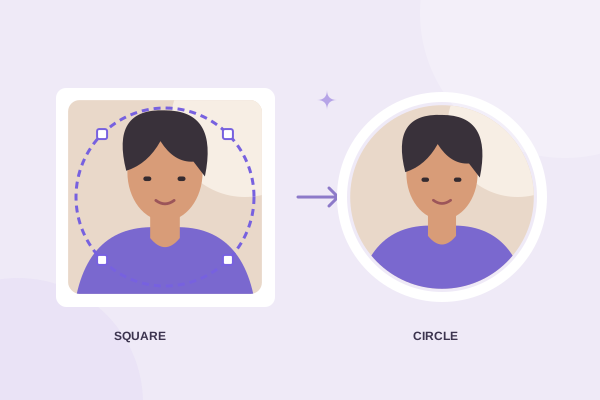
To turn a square photo into a perfect circle, place a circular selection over the part you want to keep and export with transparent corners. You do not need to stretch the image, round four corners individually or make the original file physically circular. The result is a square pixel grid with a round visible image inside it.
The shape is simple, but the composition changes more than people expect. A square keeps all four corners. A circle removes them, and that can cut off hair, shoulders, lettering or objects near the edge. This guide shows how to predict those cuts, make a balanced selection and save a reusable result without changing the original.
Understand what the circle will remove
Imagine a circle touching the middle of each side of a square. The top, bottom, left and right midpoints remain inside the boundary, but the four corners do not. An important detail near a corner can disappear even when it seems far from the square’s outside edge. Always judge the circular outline rather than assuming that everything visible in the square will survive.
For a portrait, this matters around the top sides of a hairstyle and the outer shoulders. For a product image, it can affect a handle, antenna or packaging text. For a logo, the vulnerable parts may be the points of a star or the end of a wide wordmark. Move those details away from the circular edge by selecting a looser composition.
A centered circle is a starting point rather than a rule. A subject can be slightly off-center in the source or visually heavier on one side. If the automatic centered crop looks wrong, move the selection. You are choosing the most useful round composition, not proving that the original photo was geometrically centered.
Circular does not mean distorted
A correct circle crop clips the image with a round boundary while preserving the source proportions. It should not squeeze a rectangular face into a circle or widen a logo to fill the available space. Our editor applies uniform image scaling. The selection stays circular as its diameter changes, so the crop cannot become an ellipse through the resize handle.
Upload your square source and make a first selection
Open the square-to-circle cropper, select the original JPG, PNG or WebP, and wait for the image dimensions to appear. You can use a non-square source too, but a square source makes the corner geometry especially easy to see. The darkened area outside the ring is excluded from the final circle.
Leave Move circle active and drag until the subject sits comfortably inside the boundary. Start with a little extra room. If the portrait feels distant, tighten the crop gradually rather than beginning with a very small circle. Keep important facial features, lettering or object edges safely away from the ring so small display changes do not make them feel clipped.
Use the position buttons for small corrections. Center circle returns the selection to the workspace center. Reset restores the initial transformation if your first attempt becomes confusing. The original file is not altered by these operations, so you can experiment freely and make another version later from the same source.
Distinguish circle size, zoom and image movement
Circle size changes the diameter of the selection. A smaller circle selects a smaller area of the workspace. Zoom changes how large the source photo appears beneath that selection. Pan image moves the underlying photo while leaving the circular boundary where it is. These controls can produce similar-looking compositions, but they act on different parts of the editor state.
For a straightforward square portrait, moving and resizing the selection may be enough. If the subject is close to one edge or the source contains excessive padding, switch to Pan image and adjust the source beneath the ring. Use Zoom when the subject needs to occupy more of the selected area. Watch the output dimension readout as you tighten framing.
Zoom does not create additional detail. A tight selection can contain fewer original pixels even though it looks large on screen. The editor calculates the source detail available to the crop and limits output dimensions accordingly. Choosing a large preset cannot restore eyelashes, textures or text that are absent from the selected part of the source.
Use rotation before the final edge check
Rotate left or right if the photo is sideways. Straighten handles smaller tilts. After any rotation, inspect the entire ring again because the image corners may no longer cover it. Empty areas inside the circle are allowed and remain transparent, or take the selected export background. Reframe if those gaps are not part of your intended design.
Save a true round-looking PNG
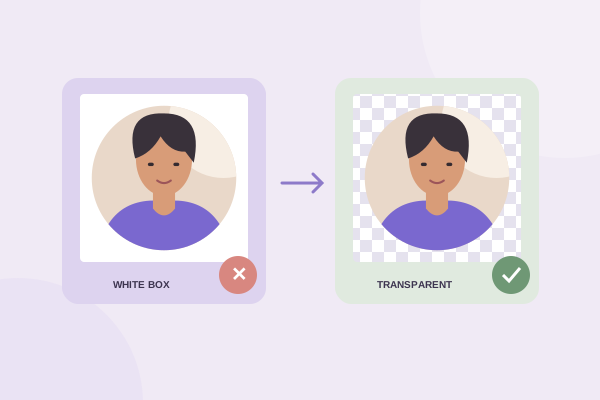
Select PNG and leave Transparent checked. The editor uses a circular clipping path for the exported image; the underlying browser concept is documented in MDN’s canvas clipping reference. Outside the ring, the saved pixels are clear rather than automatically white.
The PNG’s width and height are still equal because raster files use rectangular grids. Seeing dimensions such as 512 × 512 does not mean the crop failed. The circle occupies the square, and alpha transparency hides the corner areas. A file viewer may show those clear pixels over white, gray, black or a checkerboard, depending on its own presentation.
Use Preview, then Download to save the actual file. Do not capture a screenshot of the preview. A screenshot includes the viewer’s background and may turn the checkerboard into real pixels. Keep the downloaded PNG as a master even if you later need a JPG version for a particular service.
Handle square sources with tricky compositions
If the subject is too large for a comfortable circle, first check whether the original square was already tightly cropped. You cannot recover content outside that file. A looser original photograph is a better source than repeated adjustments to a cramped square. Ask for the uncropped photo when a head or important object is already clipped at the source boundary.
For a group image, a circular crop may not include everybody without making all faces small. Consider whether a group portrait is appropriate for the intended avatar. For a wide logo, choose an approved compact symbol instead of cutting off letters. A perfect circle is not necessarily the best container for every composition, even though the geometry itself is correct.
If the source has transparent areas, they remain transparent in a transparent export. If it has a white background, that background remains inside the circle. Circle cropping is a boundary operation rather than automatic background removal. Check both the outer corners and the interior of the circle on a colored surface before publishing.
Check the result in its destination
Upload the PNG to its intended page, profile or slide and inspect the final presentation. A service may apply another circular mask or zoom. If it feels cramped, make a slightly looser crop from the original. For profile-specific framing, see the Instagram and WhatsApp guide.
On a phone, follow the mobile workflow to locate the saved file. If the result shows an opaque square, the transparent-corner guide explains the likely causes. Keep the source and export separately so you can adjust composition later without relying on an already processed copy.
Give your photo a fresh frame.
Try the steps with your own image. Everything happens in your browser.
Try the free circle cropper