 By Aryan
A phone is enough to turn a saved photo into a clean circular image. Open the circle cropper in your browser, select the original, frame the subject, and download a PNG with transparent corners. The important part is knowing which control moves the circle, which moves the photo, and where your phone puts the finished file.
This workflow uses the same editor on iPhone and Android. It does not require an account or access to your entire photo library. You choose one image through the phone’s picker. The crop happens in the browser, and the original file stays unchanged. The final result is a new square image containing a circular visible area.
Start with a file your browser can open
Use a JPEG, PNG or WebP whenever possible. These are the main input formats for this tool. A screenshot is convenient, but the original camera photo usually gives you more useful detail. If somebody sent the picture through a messaging app, ask for the original attachment rather than saving a compressed preview from the conversation.
An iPhone camera image may be HEIC. This cropper does not include a HEIC converter. Export a compatible JPEG or PNG first using a trusted local photo application. Renaming a file from .heic to .jpg does not change its contents. The editor checks the file signature before attempting to decode it, so a renamed unsupported file will still be rejected.
Open the free circle crop tool, tap Select an image, and choose your photo. Your system may offer Photos, Files, camera folders or another source. Those choices belong to the phone’s picker and can differ between devices. Wait until the editor shows your image and its original pixel dimensions before adjusting it.
If the photo will not open
Read the error before trying repeatedly. An unsupported format needs a compatible copy; a corrupt file needs a fresh copy. A very large image may exceed the tool’s 30 MB or 40 megapixel limit. Close other heavy tabs if your phone is short on memory, then try a smaller local copy. The limits protect the browser rather than measuring your subscription or account.
Frame the subject using the right movement mode
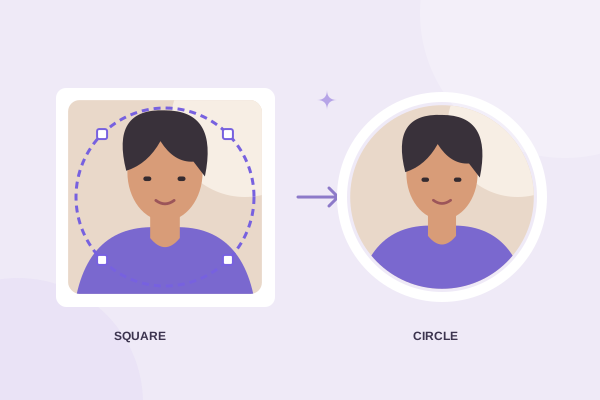
The editor begins with a centered circle. The darkened area outside the outline is excluded from the finished circular image. It is still visible during editing so you can understand what you are cutting away. A crop does not erase the background behind the subject inside the circle.
In Move circle mode, drag within the editing area to reposition the selection. Keep the most recognizable part of the photo away from the circular edge. For a face, leave space above the hair and include enough shoulder detail to avoid a floating-head appearance. A tighter crop can work, but check that the chin and hair remain inside the boundary.
Switch to Pan image when you want the photo to move beneath the selection. This is useful when you have already placed the circle where you like it. Move circle changes the selection’s location in the workspace; Pan image changes the photo’s position. If a drag appears to move the wrong thing, check the highlighted mode before starting over.
Use small adjustments near the edge
Lift your finger between short movements so you can see the result clearly. The position buttons let you nudge the circle when your fingertip covers an important detail. Center circle returns the selection to the middle of the workspace without removing every other adjustment. Reset restores the original transform state when you want a clean starting point.
Resize, zoom and correct orientation
The circle size slider changes the selection diameter while preserving its shape. You can also drag the visible resize handle. Reducing the circle keeps a smaller area of the workspace; enlarging it includes more. The control never stretches a circle into an ellipse. For a simple first attempt, keep the circle moderately large and move it into place before fine adjustments.
Zoom enlarges the underlying photo. You can use the slider, or pinch inside the editing area with two pointers. Use the slider if your browser or device makes pinch gestures awkward. The canvas handles touch gestures locally; scrolling the text and settings outside the canvas should still move the page normally.
Rotate left or right corrects a sideways picture in quarter turns. Straighten makes smaller angular changes. A horizontal flip mirrors the image, so check any words on clothing or signs before using it. A vertical flip is useful for correcting an inverted design, but rarely needed for a normal portrait. Undo can recover a recent adjustment without resetting everything.
The tool allows empty space where the photo does not cover the selection. That space remains transparent when transparency is selected. If you notice a blank wedge after rotating, zoom in slightly, move the image, or choose a smaller circle. Avoid increasing zoom more than the framing requires because tighter framing uses fewer original pixels.
Choose your output and save the actual file
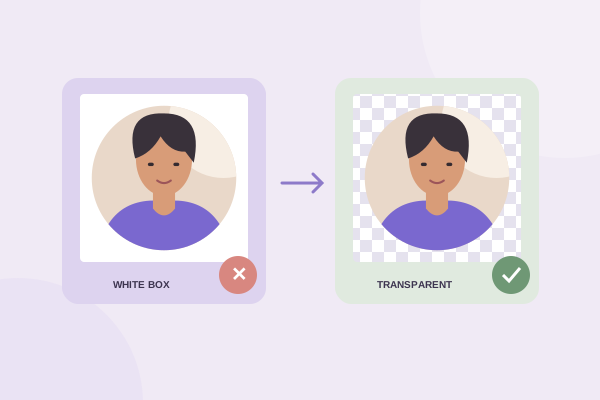
PNG is the easiest choice when you need transparent corners. Leave Transparent selected under Background. Choose JPG only when you want an opaque color behind the circle or the destination requires it. WebP appears as an export option only when the browser passes its encoder capability check. This tool does not offer AVIF output.
Output dimensions are limited by the selected source detail. A 512-pixel preset means up to 512 pixels on each side; it will not enlarge a crop that contains less detail. Use Preview to inspect the exported framing. Then tap Download. The result is a real file named with the circle-cropped prefix, not a screenshot of the editing controls.
Find the download on iPhone or Android
On iPhone, check Safari’s downloads control or the Downloads folder in Files. Apple explains the available locations in its downloaded files guide. A browser download does not necessarily appear in Photos automatically. If your destination accepts files, you can choose the PNG directly from Files.
On Android, check Chrome’s Downloads list or the phone’s Files app. Google’s Android download instructions explain where to find saved items. Folder names and file-manager layouts vary by manufacturer. Check the file extension when several similarly named downloads exist.
Check the result before using it elsewhere
Open the saved file and inspect the face, edges and dimensions. A white viewer background does not prove that transparency was lost. Place the PNG over a colored surface to check its corners. If they remain white, follow the white-corner troubleshooting guide before repeating the entire crop.
For a square source, our square-to-circle walkthrough explains why corner details disappear. If the subject looks soft, use the sharpness checklist to distinguish low source detail from a small preview. For a larger screen and keyboard controls, use the Mac and Windows workflow. Save a neutral master crop and keep the original so future profile changes are easy.
Give your photo a fresh frame.
Try the steps with your own image. Everything happens in your browser.
Try the free circle cropper