 By Aryan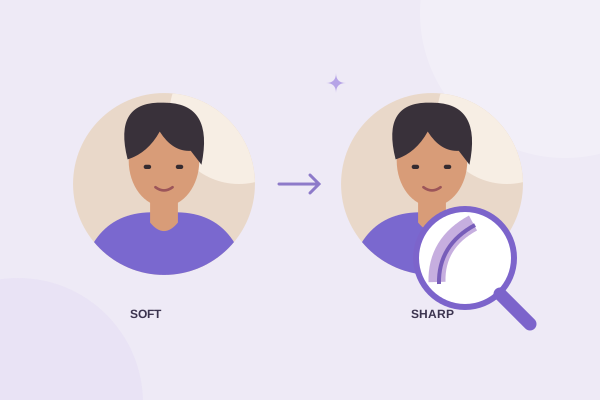
A blurry circular photo usually starts with too little source detail, a crop that zooms too far into the original, an undersized export or another service resizing the file. The circular shape itself does not make a face blurry. To fix the problem, locate the stage where detail was lost instead of repeatedly exporting a larger version of the same weak image.
This guide works through that diagnosis in a useful order: source, framing, output, compression and destination display. It also explains why a smooth circular boundary can contain partially transparent pixels without being defective. You can improve the workflow, but a cropper cannot recover features that are missing from the original or reverse every earlier compression step.
Inspect the original before changing export settings
Open the source at a sensible pixel scale and look at the important detail. Are the eyes and hair already soft? Does a small logo have fuzzy letters before you crop it? If so, the problem is in the source. A larger output file adds more pixels but does not create the lost information those pixels would need to represent.
Look for the highest-quality original. A profile thumbnail, screenshot of a message or image saved from a preview panel may be much smaller than the camera file. Ask the photographer or designer for a proper export. A new crop made from that original is usually better than another pass over an image that has already been reduced several times.
Check actual pixel dimensions rather than the file size alone. A large file can contain lots of empty space, noise or inefficient encoding, while a modest file can contain a clean useful portrait. On Mac, Apple explains how to inspect image information in Preview’s Inspector. Other viewers offer similar dimension readouts.
Distinguish focus blur from compression damage
A photo that was out of focus has broadly soft details. Strong JPG compression can add blocks, ringing and smudged textures. A small bitmap enlarged on screen can look pixelated. These symptoms overlap, but they suggest different remedies. A better original helps all three; changing the circle position does not fix a missed camera focus point.
Understand how a tight crop reduces available detail
Suppose your original is 2000 pixels wide, but the face occupies only a small part of it. A tight crop around that face might contain just a few hundred pixels across. The exported avatar cannot have the same true detail as the full original simply because the original file has a large dimension. The selected region is what matters.
Zoom makes the source appear larger beneath the circle. That often improves composition, but the circle then selects a smaller portion of the original. Watch the output dimension readout while zooming. If the available detail drops below the intended display size, try a slightly looser framing or choose a closer original portrait.
Circle size and pan can help you select a better region without unnecessary zoom. Start with a comfortable crop and tighten it gradually. Avoid cutting so close that individual facial features dominate the file. A readable small avatar often benefits from a clear overall silhouette and some shoulder context rather than an extreme close-up.
Choose an output size that matches its destination
Measure or estimate how large the picture will appear. A tiny comment avatar and a large team biography image have different needs. Screens with higher pixel density may benefit from more image pixels than the CSS display width, but there is no universal dimension that fits every page and platform. Check the actual layout before exporting the largest possible file.
The cropper’s presets are upper bounds. Choosing up to 1024 pixels does not enlarge a crop with only 400 pixels of source detail. The native-detail option is capped at 4096 pixels. These rules help avoid accidental enlargement, but they do not prevent another application from stretching the exported file later.
If a file looks sharp locally and blurry on a website, inspect its displayed dimensions and the version actually delivered. A builder may be serving a small thumbnail in a large card. A CSS rule may stretch the image beyond its intrinsic size. Uploading an even larger source will not help if the site continues to select the wrong derivative.
Judge at the intended viewing size
Do not evaluate an avatar only at extreme magnification. Every raster image reveals individual pixels when enlarged enough. Compare it at the actual display size and perhaps at a modestly enlarged view for edge inspection. A file that looks imperfect at 800 percent may still be entirely appropriate for a small profile badge.
Avoid unnecessary compression steps
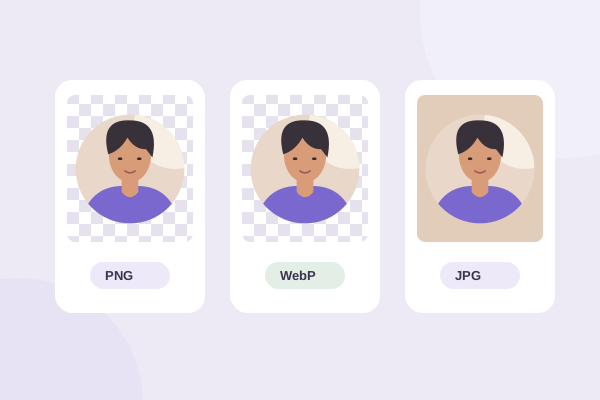
PNG is a useful master for keeping a transparent crop without a lossy encoding step in this tool. JPG and WebP expose quality controls. Start at a reasonable high setting, then reduce quality only if file weight matters. Inspect faces, fine patterns and high-contrast edges because those areas often show damage first.
A change of format does not recreate missing detail. Saving a blurry JPG as PNG preserves the blurry pixels more faithfully; it does not restore the camera original. Similarly, repeatedly saving a lossy format can introduce additional damage. Return to the original source for each export instead of editing and resaving the previous compressed result.
For a flat logo, compare thin strokes and small lettering carefully. Lossy compression can create visible ringing around clean shapes even when a photograph looks acceptable at the same setting. Our format comparison explains when a transparent PNG master, a WebP delivery image or a JPG matte is useful.
Recognize normal antialiasing at the circular edge
A circle crosses a square grid of pixels. The browser blends coverage near the boundary so the curve does not look like a staircase. In a transparent image, this means some edge pixels have partial alpha. A narrow transition is expected; it is not the same as a broad blurred halo or a soft face inside the circle.
The editor requests high-quality image smoothing when drawing the final crop from the decoded original. Browser handling can vary, as MDN notes for imageSmoothingQuality. That setting is a rendering preference rather than a promise to add detail. The source, selected scale and destination remain more important.
If an edge looks pale on dark backgrounds, check whether the source was flattened against white. That fringe may belong to the original artwork rather than the circular mask. A clean transparent source is the best fix. Do not confuse a white source halo with the natural partially transparent pixels at the new circular boundary.
Make one controlled comparison
Use the circle crop tool to make a moderate crop from your best original. Save a PNG at available source detail, then compare it with your previous result at the same displayed size. Change one variable at a time: framing, dimensions, format or quality. This makes it possible to tell which adjustment actually helps.
For social portraits, the profile framing guide explains why breathing room improves recognition. For a group of website portraits, follow the team avatar workflow so consistency does not force poor sources into excessive zoom. Keep the original and the verified master, and check the final destination before deciding the crop still needs work.
Give your photo a fresh frame.
Try the steps with your own image. Everything happens in your browser.
Try the free circle cropper