 By Aryan
A consistent set of round team photos makes a website feel considered without making every person look identical. The useful consistency is in framing, display size and spacing. Each person can keep a natural expression and individual appearance while the row of portraits still reads as a coherent team.
Start by deciding how the photos will appear on the page, then crop each original to suit that layout. This guide covers a practical manual workflow, export choices and accessible publishing. The cropper works on one image at a time; it does not offer automatic face alignment, background removal or batch processing. A short written framing standard will help you reproduce the same result across the set.
Define a visual standard before cropping
Choose one representative portrait and make it your reference. Decide how much headroom to leave, roughly how large the face should appear and how much shoulder detail to include. Keep those decisions simple enough to explain to another person. A note such as “eyes slightly above center, hair clear of the ring, shoulders visible” is more useful than a vague request to make all photos match.
Compare source quality before doing detailed work. A professional headshot and a distant group-photo crop may not produce equally sharp avatars. Ask for a better original when one image is clearly weaker. Avoid forcing every image into a very tight crop to compensate for a single poor source. A looser consistent style may work better for the entire team.
Consider consent and context. Use photos your organization has permission to publish, and confirm names and roles separately. The cropper does not manage those permissions or store a staff directory. If somebody needs a replacement image, make that part of your content workflow rather than treating the website photo as a permanent identity record.
Crop each person with a consistent visual scale
Open the round team photo tool and upload the first original. Frame the face inside the circle using your agreed reference. Pay attention to the apparent head size rather than the original file’s dimensions. Two source images can have identical pixel sizes and very different distances between the camera and the person.
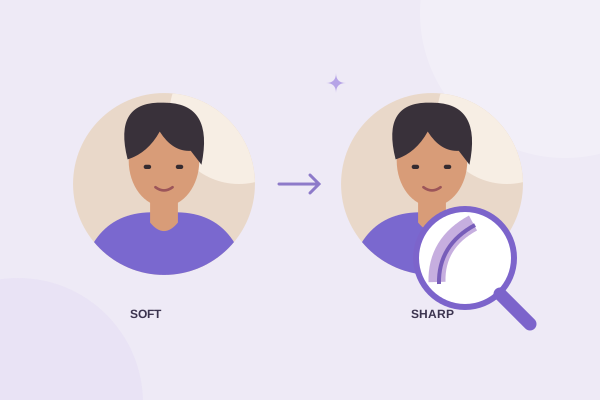
Use Move circle for the selection and Pan image for the source. Adjust zoom only as needed. Check the available output detail after a tight crop. A small source may not support the same delivery size as the others, and increasing zoom uses fewer original pixels. If the result becomes soft, return to a better original rather than repeatedly enlarging the crop.
Check hair and clothing at the circle’s sides. A hairstyle with more volume may need extra room even when the face size matches the reference. A slightly turned pose may benefit from more space in the direction of the gaze. Aim for a consistent visual impression while allowing sensible adjustments for each portrait.
Keep a simple production checklist
For every person, check the name, original quality, headroom, eye line, shoulder crop, background and export size. Download the first finished version and place it in your intended layout before processing the rest. That catches problems with the chosen style early. It is easier to revise one reference crop than ten finished portraits.
Use Replace image for the next person. This resets the transform so the previous portrait’s rotation and pan do not become an accidental starting point. Repeat the reference framing manually, then save with a consistent filename convention. A name or internal asset identifier is useful; avoid putting unnecessary personal details into publicly served filenames.
Choose transparent files or a deliberate matte
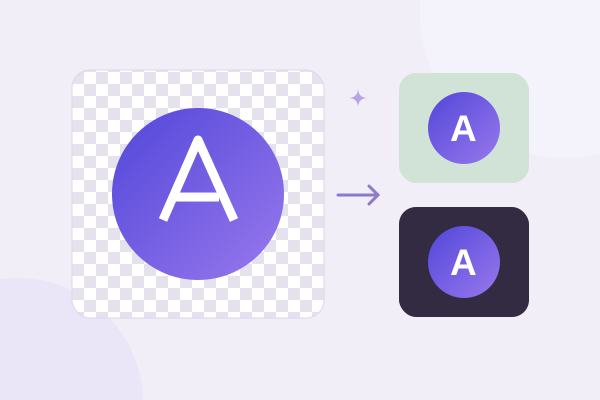
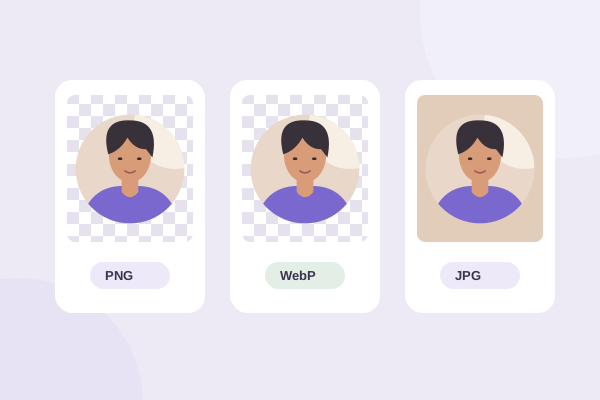
A transparent PNG lets the outer corners adapt to the page background. It is a useful master for staff cards, presentation decks and organizational charts. If the portrait already includes a studio background inside the circle, that background remains. Circle cropping does not make all the different photographic backgrounds identical or remove them automatically.
WebP is another option for website delivery when the exporting browser supports it. Compare size and visual detail rather than applying a blanket quality value to every source. JPG can work on a fixed-color card, but the corners will contain that chosen color. A future redesign with a different card background can reveal the square unless you create another export.
Keep the original and a neutral transparent master. This gives your team flexibility when the same portrait is reused on a dark page or a colored slide. For brand symbols used beside the portraits, the transparent logo guide explains how to inspect internal transparency and source-edge halos.
Pick dimensions for the page you are building
Measure the displayed avatar width in the design. A portrait shown at 96 CSS pixels does not need the same delivery file as a large biography image. A higher-density screen can benefit from more source pixels than the CSS width, but an enormous image adds download weight without unlimited visual improvement. Choose a supported export size appropriate to the actual placement.
For example, if a team card uses a 160-pixel avatar, a clean 320-pixel source is a reasonable starting point for a dense display. Treat that as a working example rather than a universal requirement. Check the image at the final size and on a real page. The cropper’s upper-bound presets will avoid enlarging beyond the source detail.
Specify image width and height in the page markup to reserve the layout space. Keep the displayed width and height equal. An avatar stretched into a wide rectangle distorts the face regardless of how carefully it was cropped. If your page applies its own mask, check that it does not add extra zoom or clip the headroom you deliberately preserved.
Understand CSS cropping versus file cropping
A square original can be displayed inside a CSS circle using border-radius and object-fit. MDN documents object-fit and border-radius. That styling affects presentation on that page. Exporting a circular PNG is useful when you also need a reusable asset for slides, email layouts or systems where you cannot control the CSS.
Write useful alternative text and check the cards
Decide what information the portrait contributes. If the person’s name is already adjacent and the picture adds no essential information, an empty alt may prevent repetitive announcements. If the photo identifies somebody without nearby text, a concise name-based alternative may be appropriate. W3C’s image alternative decision tree provides guidance based on context.
Do not fill alt text with decorative descriptions or search keywords. For a linked portrait, ensure the link purpose is understandable. Check the complete card with keyboard navigation and a screen reader when feasible. Image accessibility depends on the surrounding content and functionality, not just the presence of an alt attribute.
Review the team section at narrow and wide widths. Make sure rows wrap gracefully, faces are not clipped differently on mobile and names do not collide with photos. Test light and dark surfaces if your website offers both. A single inconsistent matte or blurry source becomes easy to spot when portraits are shown together.
Maintain the set as your team changes
Store the framing note with your site’s content instructions. Keep filenames, export dimensions and quality decisions consistent for future additions. When a role changes, update the text as well as the image if needed. Review old portraits periodically so the page remains accurate.
Use the sharpness guide for weak sources and the format comparison for delivery choices. A small amount of planning makes the next portrait easier to prepare and keeps the entire team section visually balanced over time.
Give your photo a fresh frame.
Try the steps with your own image. Everything happens in your browser.
Try the free circle cropper