 By Aryan
You can make a circular image on Mac or Windows in a browser without installing Photoshop. Choose a local photo, place the round selection, adjust the framing and download a transparent PNG. A mouse, trackpad and keyboard give you precise control, and the source file remains unchanged throughout the process.
The workflow is the same across desktop operating systems because the browser handles decoding and export. Your file picker and download location may look different, but the crop controls do not depend on a Mac-specific or Windows-specific photo application. This guide explains the practical steps and the checks that prevent a round image from becoming an opaque square.
Choose a useful original and open the cropper
Start with the original image on your computer. A camera photo, an exported design or a high-resolution headshot is preferable to a small thumbnail from a contact list. If the file is in a cloud-only folder, make sure it is available locally before selecting it. A preview image shown by a storage service may not contain the full original detail.
Open the desktop circle crop tool and click Select an image. Choose a JPG, PNG or WebP using the system picker. You can also drag a file from Finder or File Explorer onto the upload area. The editor checks image content rather than relying only on the extension, then asks the browser to decode the file.
A file that is empty, corrupt or unsupported produces an error. The tool limits inputs to 30 MB and 40 megapixels, with a maximum side length of 16,000 pixels. These limits reduce the chance of overwhelming the browser. If your file exceeds them, create a smaller compatible copy in a trusted local application and keep the original safely separate.
Use a compatible export when necessary
HEIC and SVG are not supported inputs here. On Mac, Preview can export an image into a different raster format; Apple documents the relevant image tools in Preview. Use an actual export operation rather than changing the filename extension. On Windows, choose a trusted installed image application that can open the original and save PNG or JPEG.
Position the circle with a mouse or keyboard
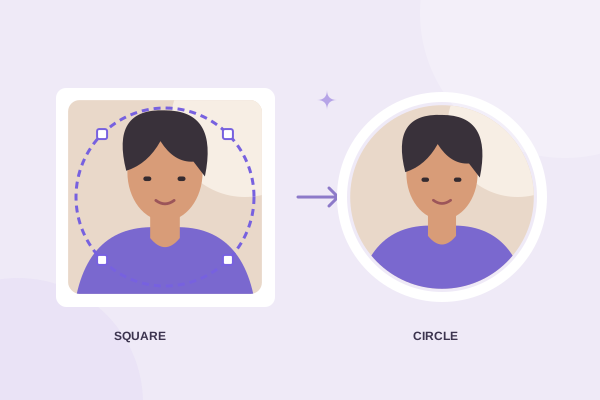
After upload, the editor shows your image inside a light workspace with a circular selection. The outside is dimmed to separate excluded content from the part you will keep. In Move circle mode, drag within the canvas to reposition the selection. Aim for comfortable spacing around the subject before tightening the crop.
For a portrait, inspect the hair, chin and shoulders at the curved boundary. For a logo, inspect the furthest points and any lettering. A detail that fits a square can disappear near a circle’s diagonal edges. If you are uncertain about that geometry, the square-to-circle guide provides a useful explanation.
Click or focus the preview canvas to use arrow keys. Arrow presses move the active target in small steps; Shift makes the steps larger. The active mode determines whether the target is the circle or the source image. The position buttons beneath the sliders provide another way to make small circle adjustments without dragging.
Keep keyboard focus visible
A visible focus outline tells you which control will receive a key press. If the page scrolls when you expected the circle to move, return focus to the preview canvas. Sliders and select menus use their own native keyboard behavior. You can tab through the editor, adjust the circle size or format, then return to the canvas for final positioning.
Use pan, zoom and transforms deliberately
Switch to Pan image to move the source beneath the current selection. This is useful after you have placed the circle where you want it. Zoom makes the source larger or smaller without changing the circle’s diameter. Circle size changes the selection itself. Work through these adjustments in a clear order so it is easy to understand what changed.
Rotate left and right turn the image by 90 degrees. Straighten applies smaller angle changes. Horizontal flip mirrors the image, and vertical flip inverts it. These changes affect the downloaded pixels, not just the editing display. Check words, logos and clothing text before saving a mirrored source because the reversal may be inappropriate for the final use.
Undo restores a recent transform state, while Reset returns the geometry to its starting point. Center circle only recenters the selection. If a rotation exposes empty space inside the circle, either reframe the photo or accept that the gap will be transparent or filled by the selected background. The tool does not invent image content to fill missing areas.
Select a format and suitable dimensions
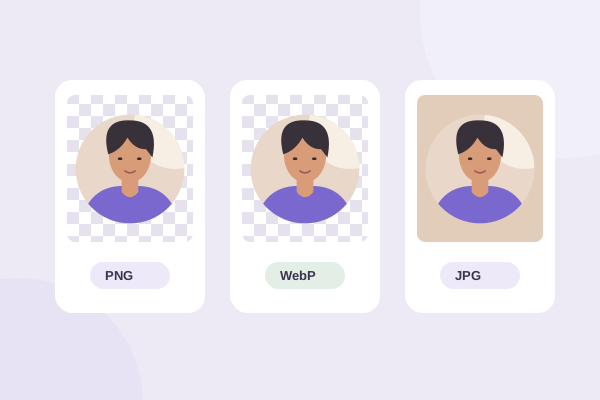
PNG with Transparent checked is the default choice for clear outside corners. It is useful for slides, website avatars and logos placed on several backgrounds. JPG creates a fully opaque square using your selected background color. WebP is available only when the browser can encode it, and the receiving application must also accept that format.
Use the source-detail option or one of the capped presets. The editor reports the actual output dimensions. If you select up to 1024 pixels and the crop contains only 700 pixels of useful source detail, it does not enlarge the result to 1024. Increasing output dimensions cannot recover detail missing from the original crop.
Preview the exported composition before downloading. Look for cut-off features, accidental transparent wedges and an unwanted matte color. For JPG or WebP, compare a sensible quality setting at the intended display size. For a crisp logo, keep a PNG master even when you make an additional compressed version for a specific destination.
Download and inspect the real file
Click Download and find the new file in your browser’s download area. The name begins with circle-cropped followed by the original filename. Chrome’s computer download help explains how its download tray and location settings work. Other browsers offer similar download lists, though their controls differ.
Open the downloaded image in a local viewer. A white window background can make a transparent PNG look as if it has white corners. To check, place the image over a colored slide or page. Clear corners reveal that color; opaque corners keep their own color. Do not judge alpha transparency solely by the background chosen by one viewer.
A screenshot of the preview is not equivalent to the downloaded image. It can capture the checkerboard, editing handles and screen-scale resolution. Use the actual export when uploading to another service. Keep your original photo so you can reframe later without repeating transformations on an already compressed copy.
Keep the desktop workflow repeatable
For several images, settle on a framing style before starting the next. Replace image opens a fresh source and resets the crop state, which prevents the previous person’s transform from carrying over accidentally. Save each finished file with a meaningful name. This is a manual single-image workflow; it does not claim batch processing.
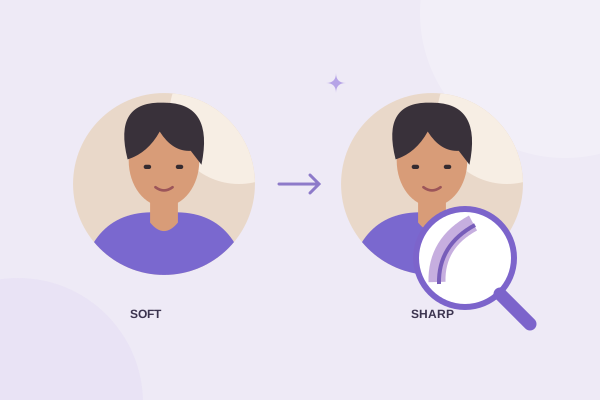
If you need help choosing a container, use the format comparison. If the subject looks soft after upload elsewhere, follow the sharpness checklist. Precise framing, a compatible format and a quick destination check are enough for most desktop circle crops without a complex photo-editing setup.
Give your photo a fresh frame.
Try the steps with your own image. Everything happens in your browser.
Try the free circle cropper